Proen AI | Managing a Team
A guide on how to add/remove team members, assign roles and permissions to them, and track members’ activities and usage. (*In order to use this feature, you need to be subscribed to our Premium plan).
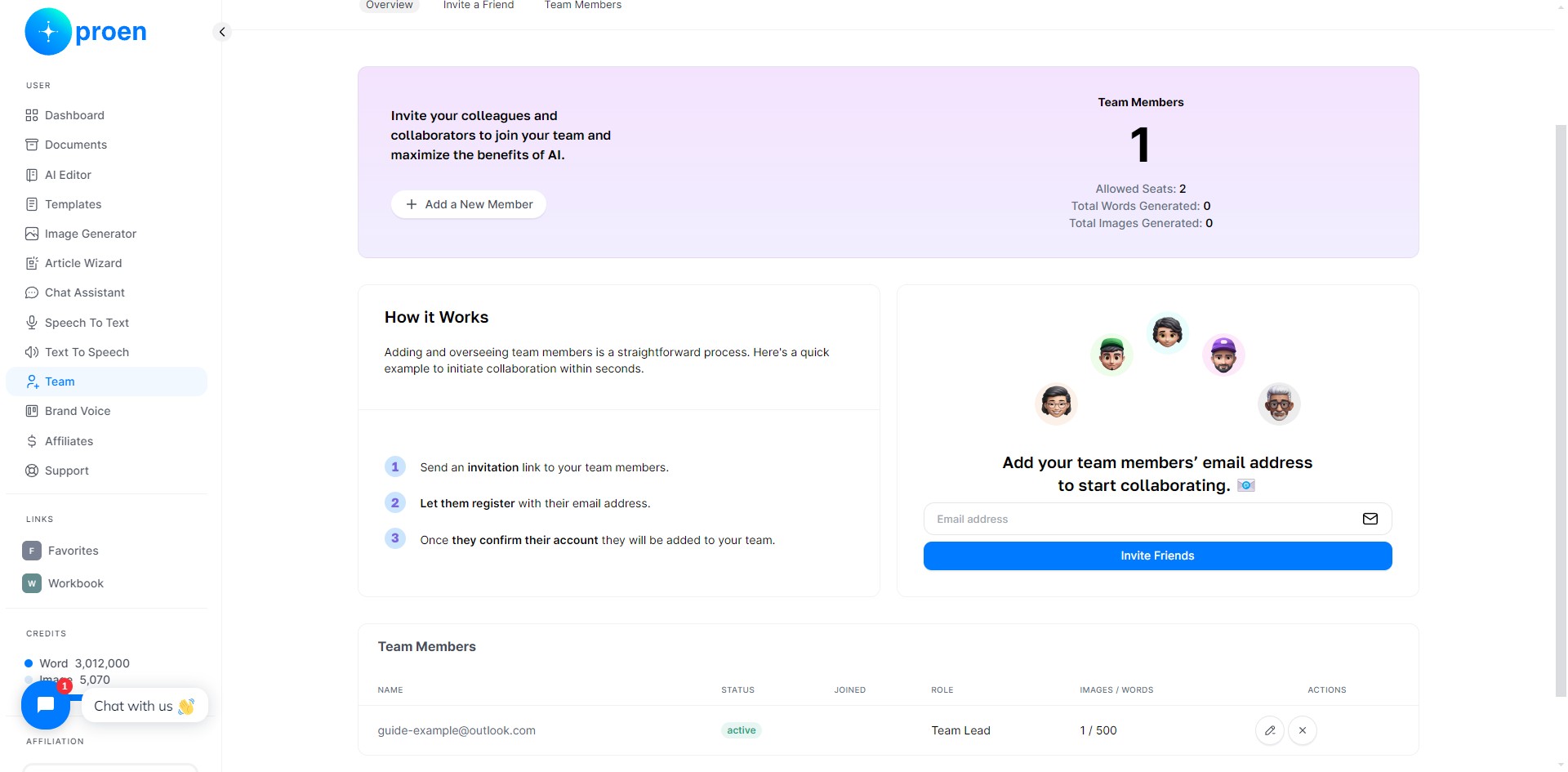
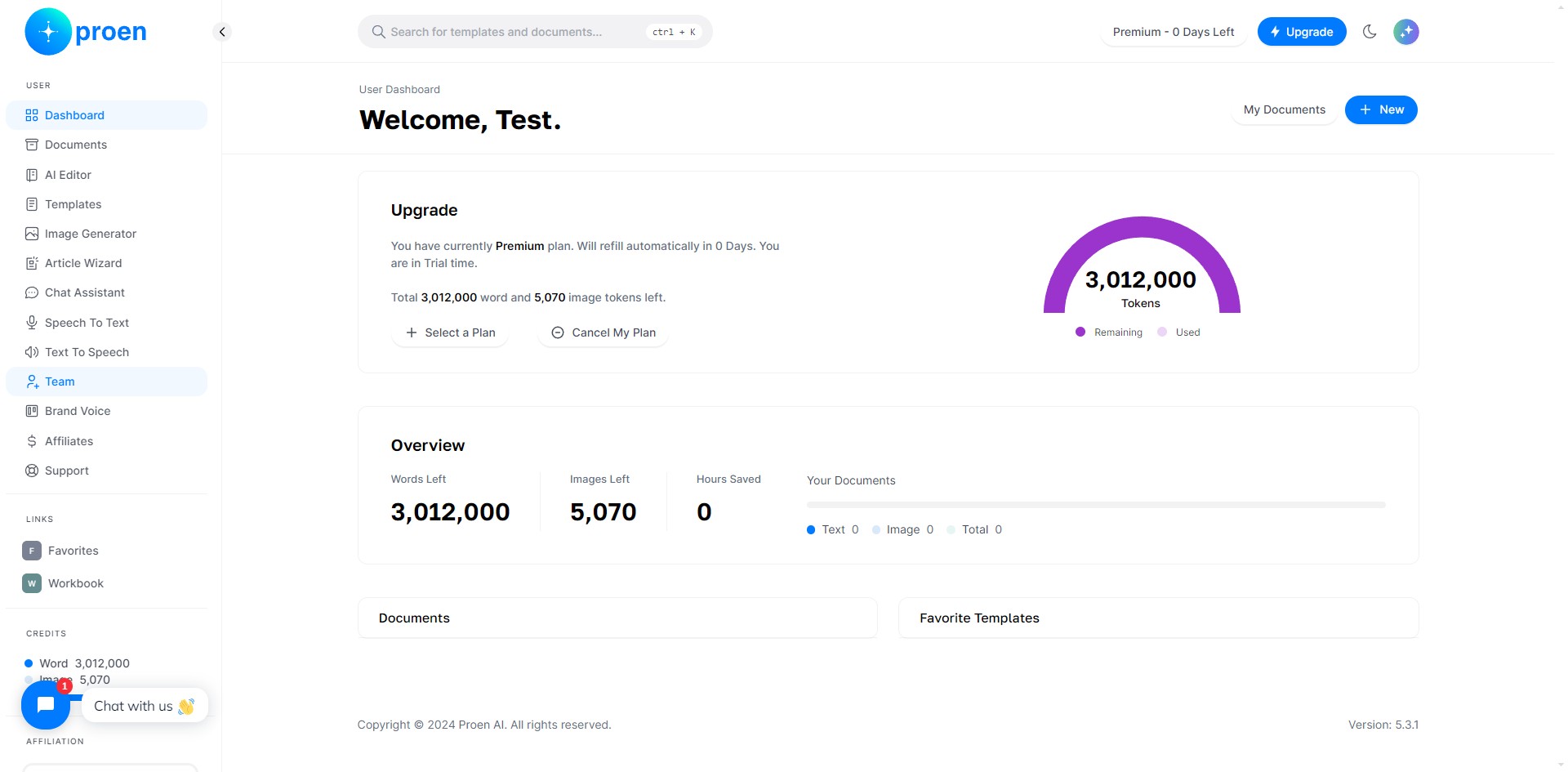
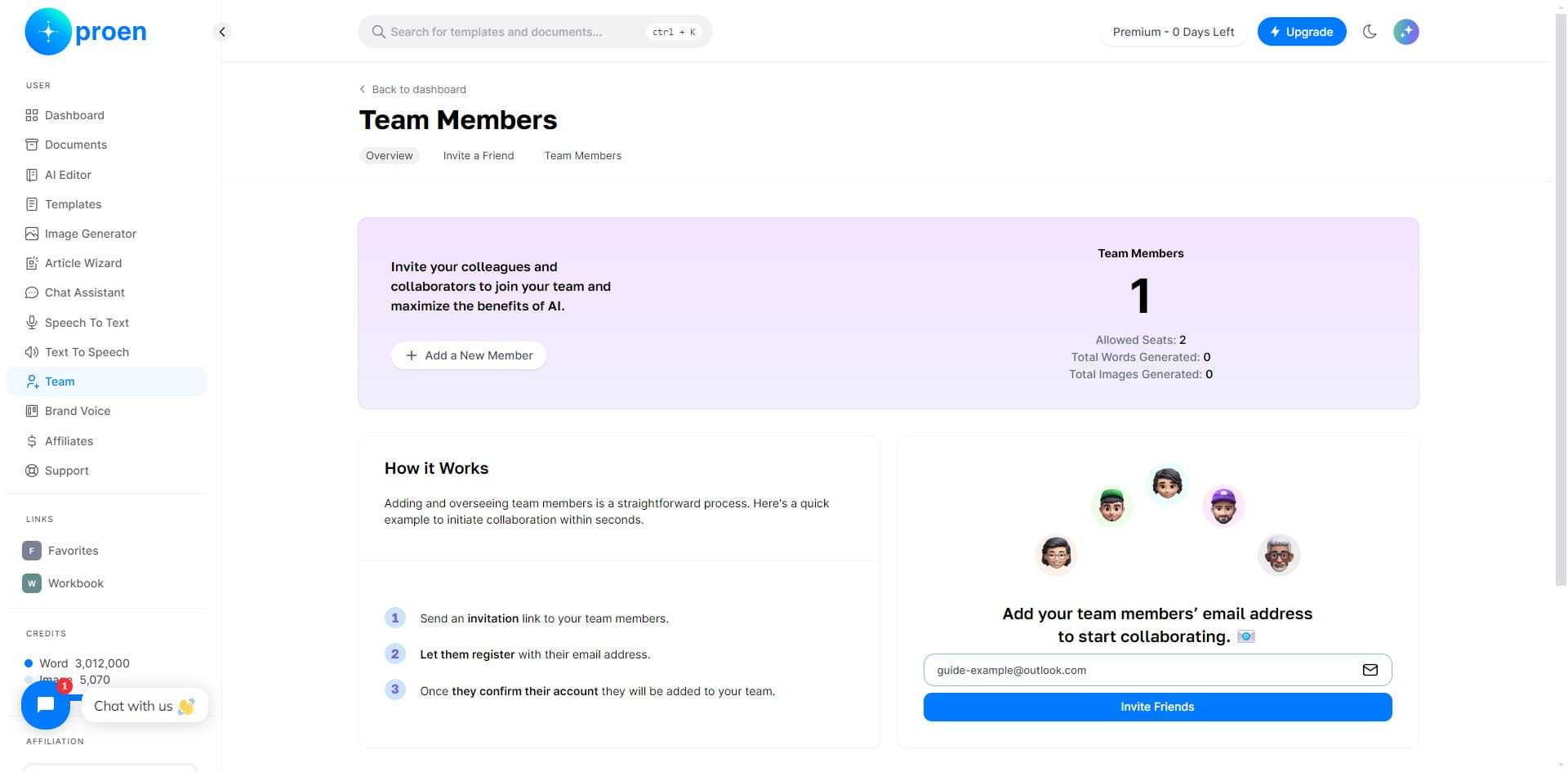
Click on "Team"
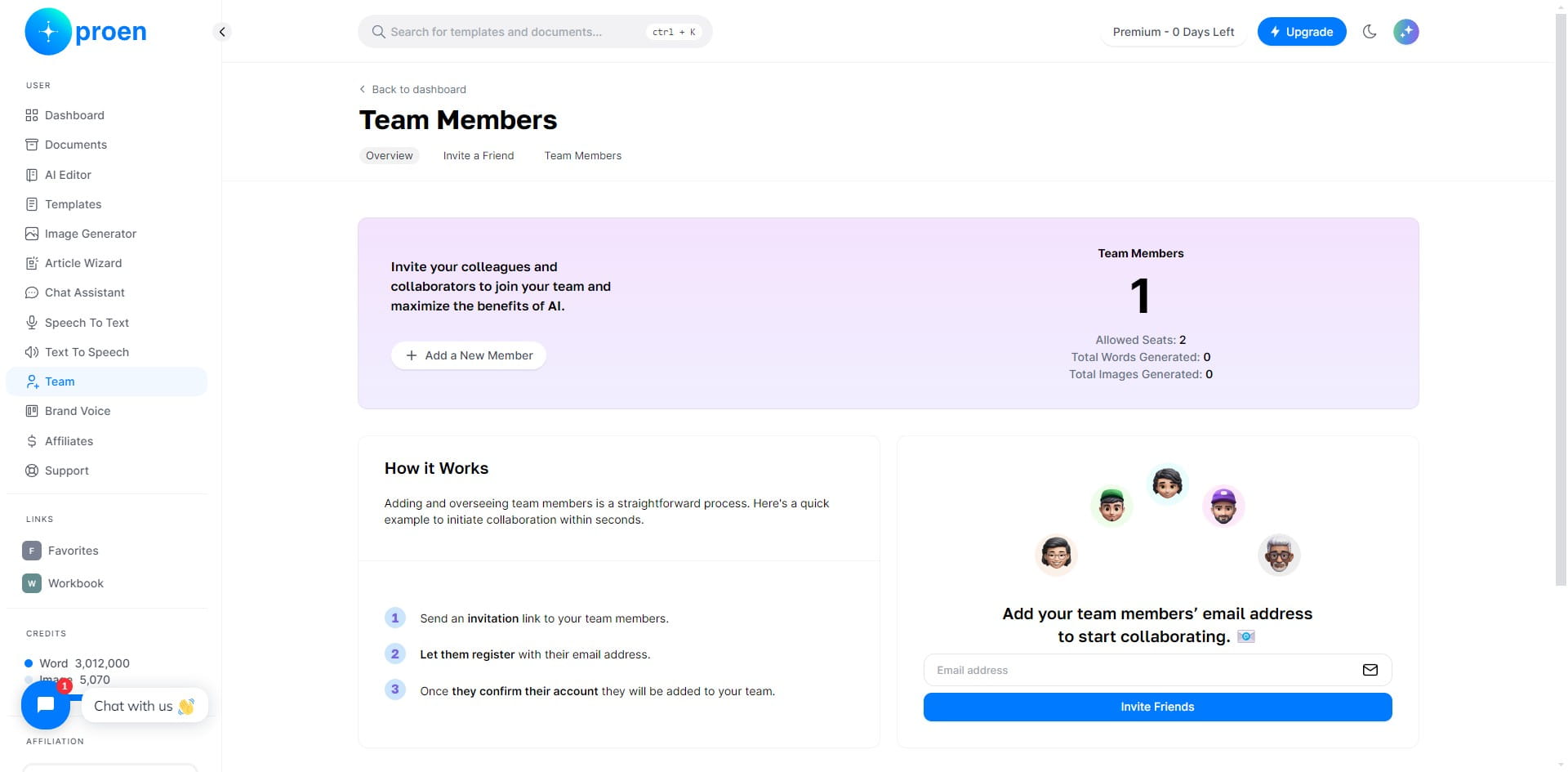
Add a New Member
Click "+ Add a New Member"
Enter the email address of the individual you wish to add to your team
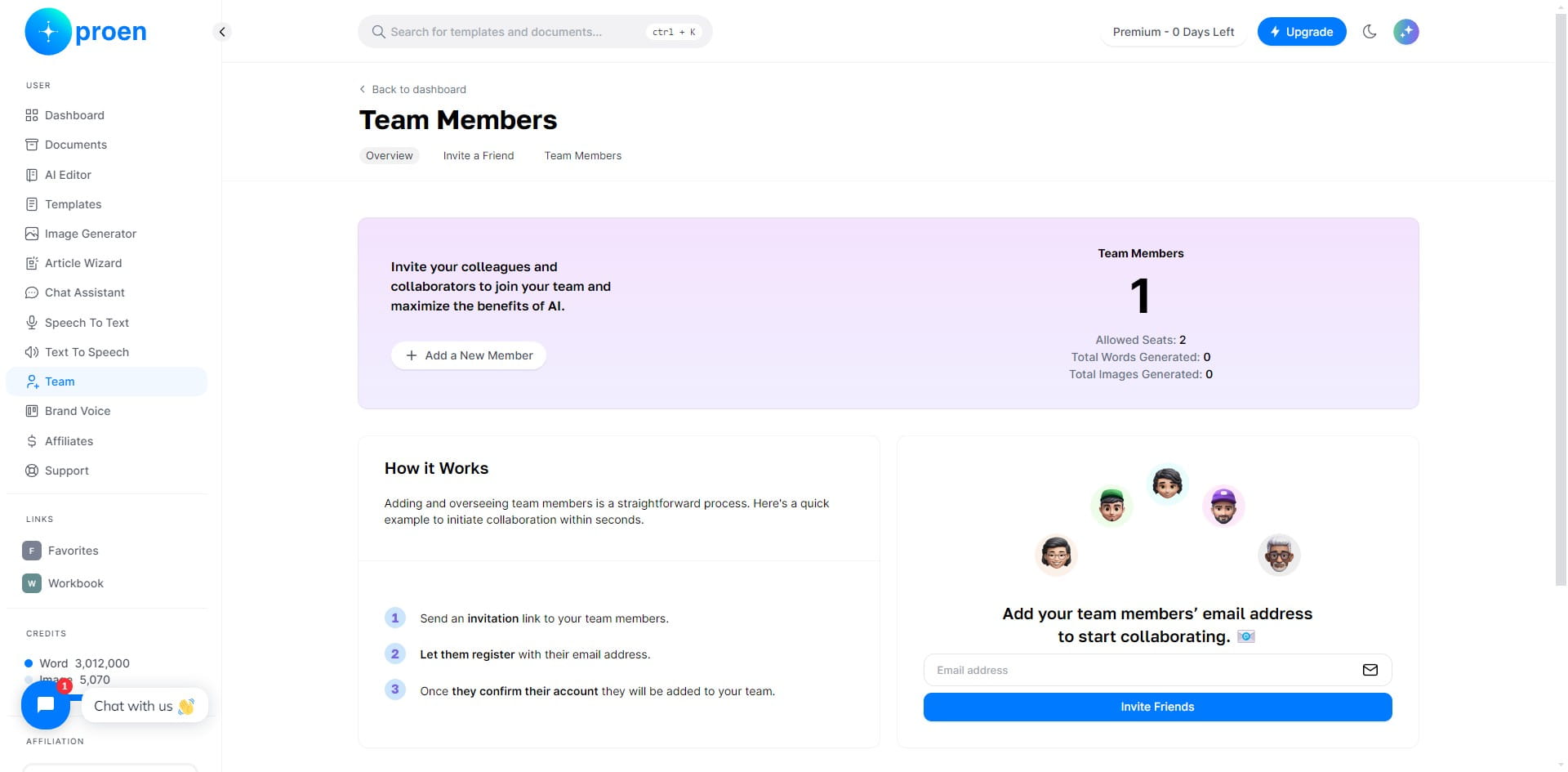
Click "Invite Friends" to invite them to your team
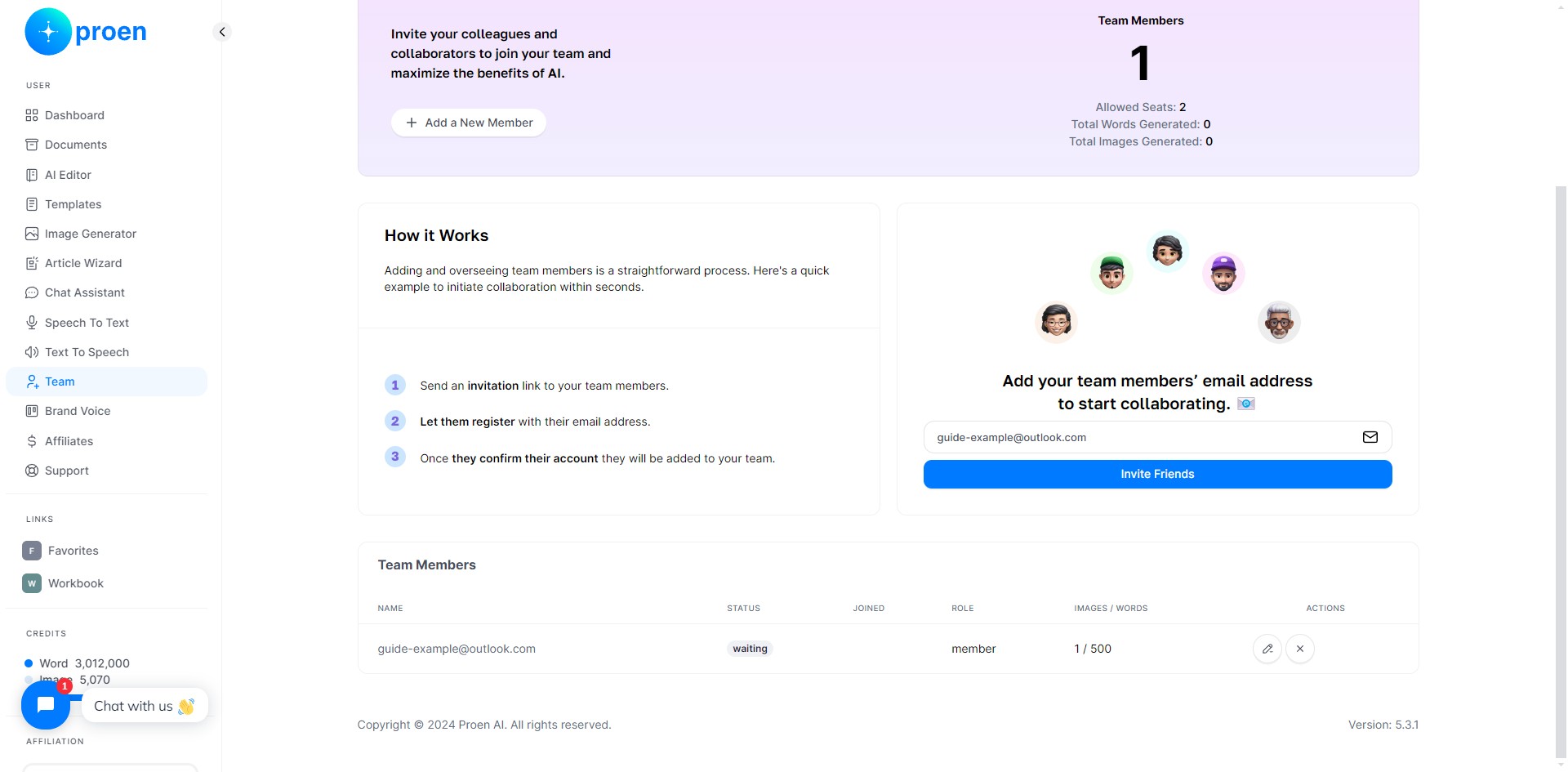
Remove a Member
Click the delete icon to remove a member from your team
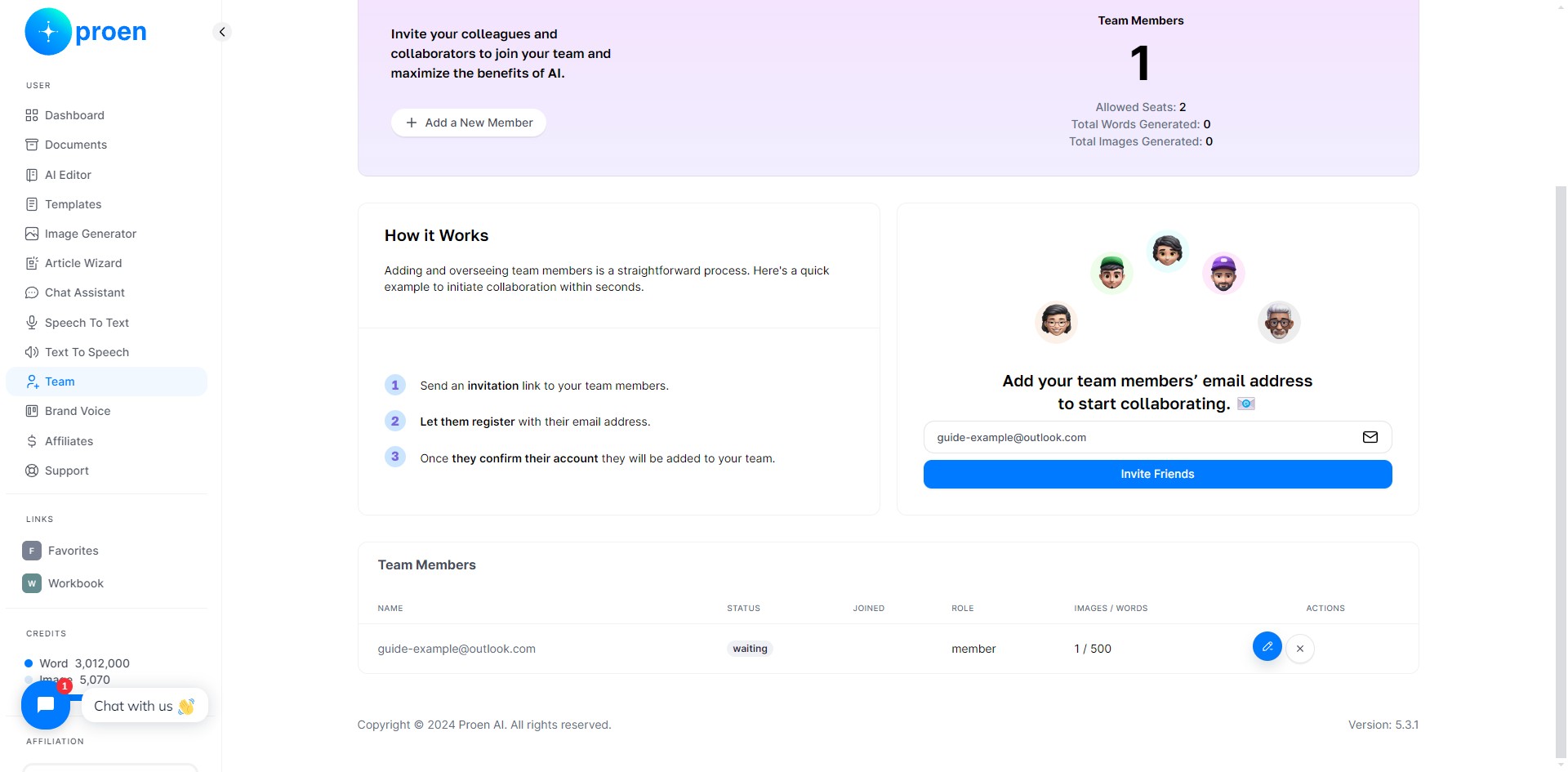
Assign Roles/Permissions & See the Activity of a Member
Click the edit icon for a member
Here, you can see the number of words and images generated by a team member
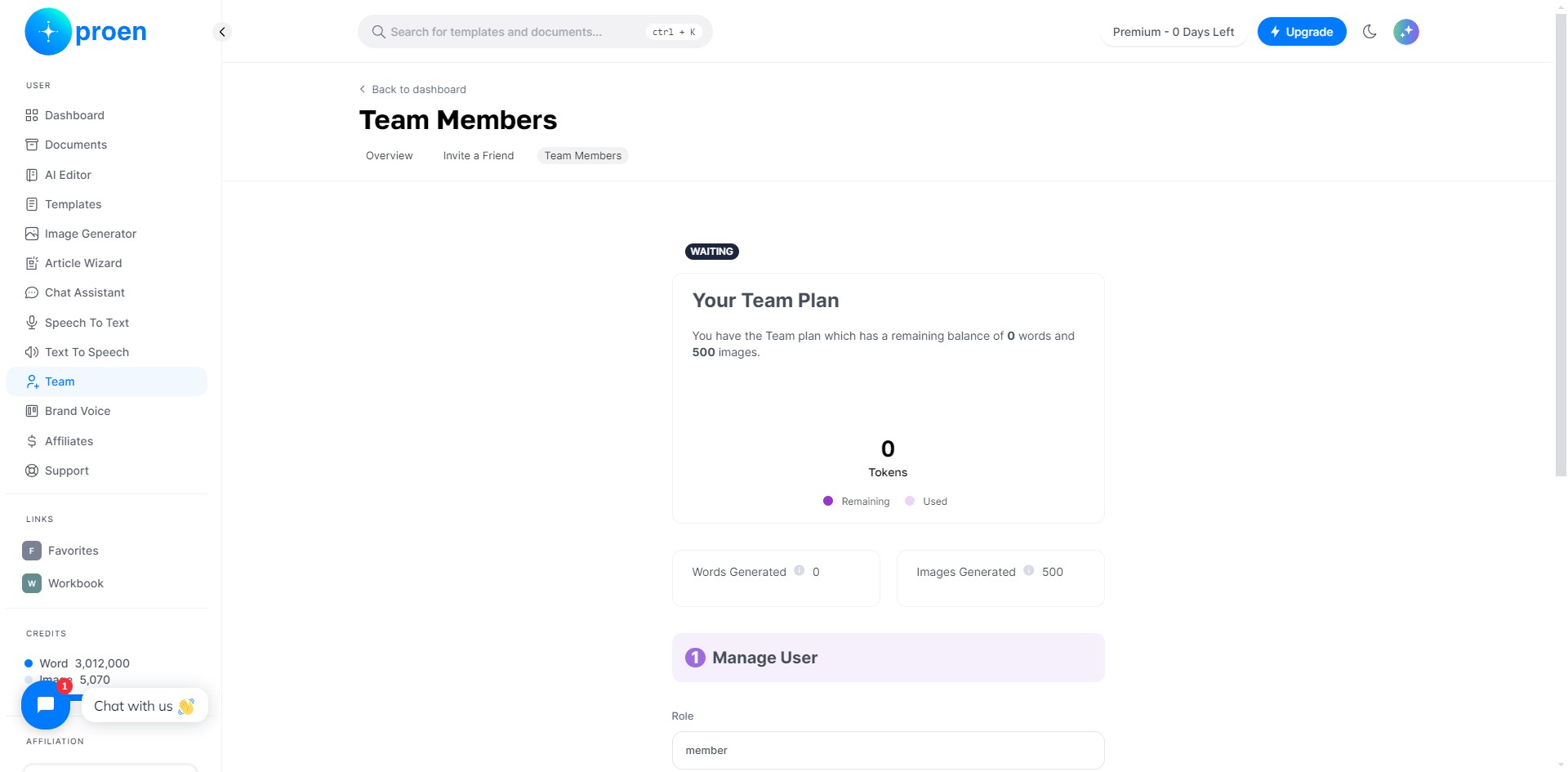
Here, you change and assign a role to a member
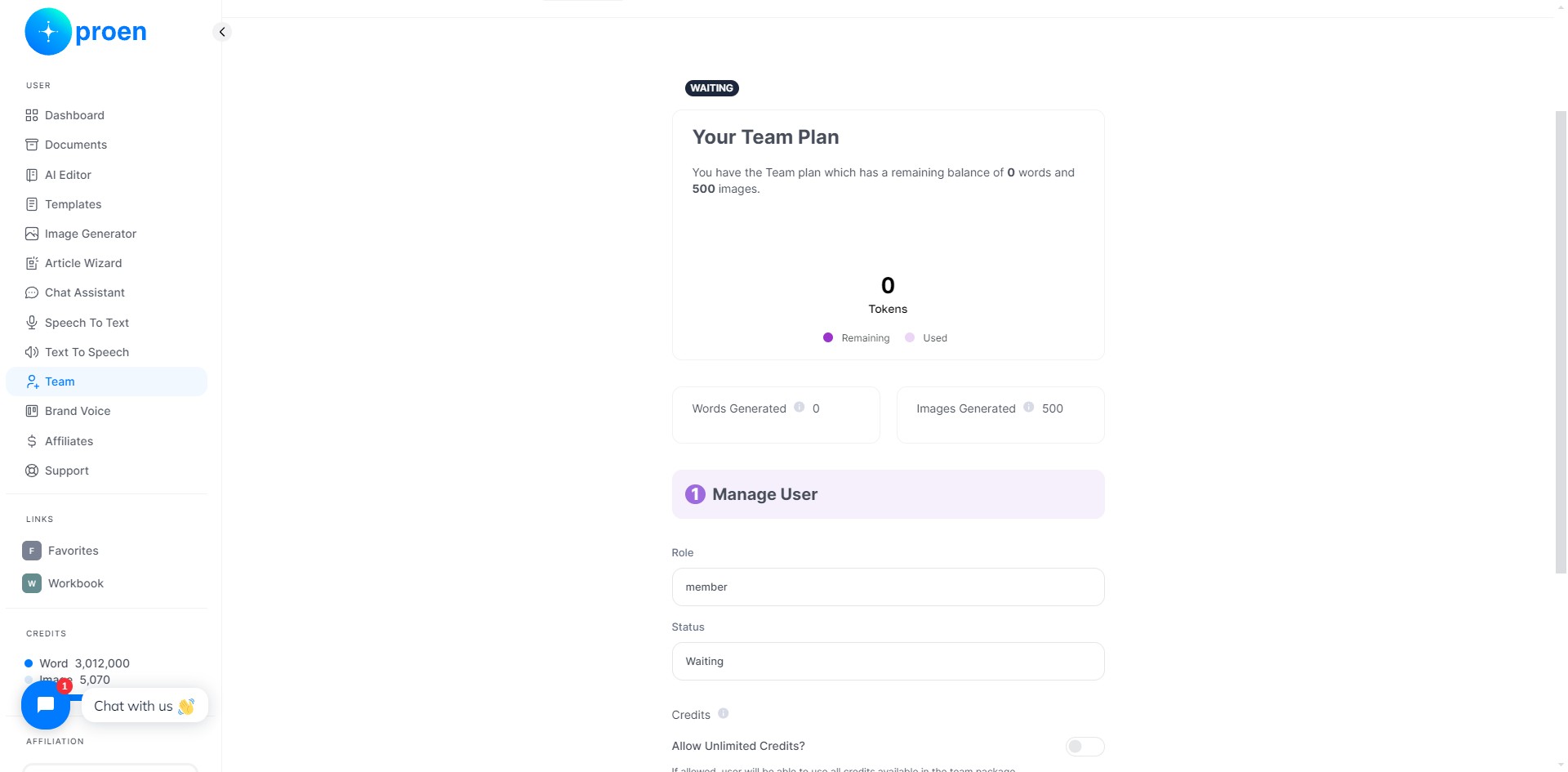
Here, you can change the status of a team member
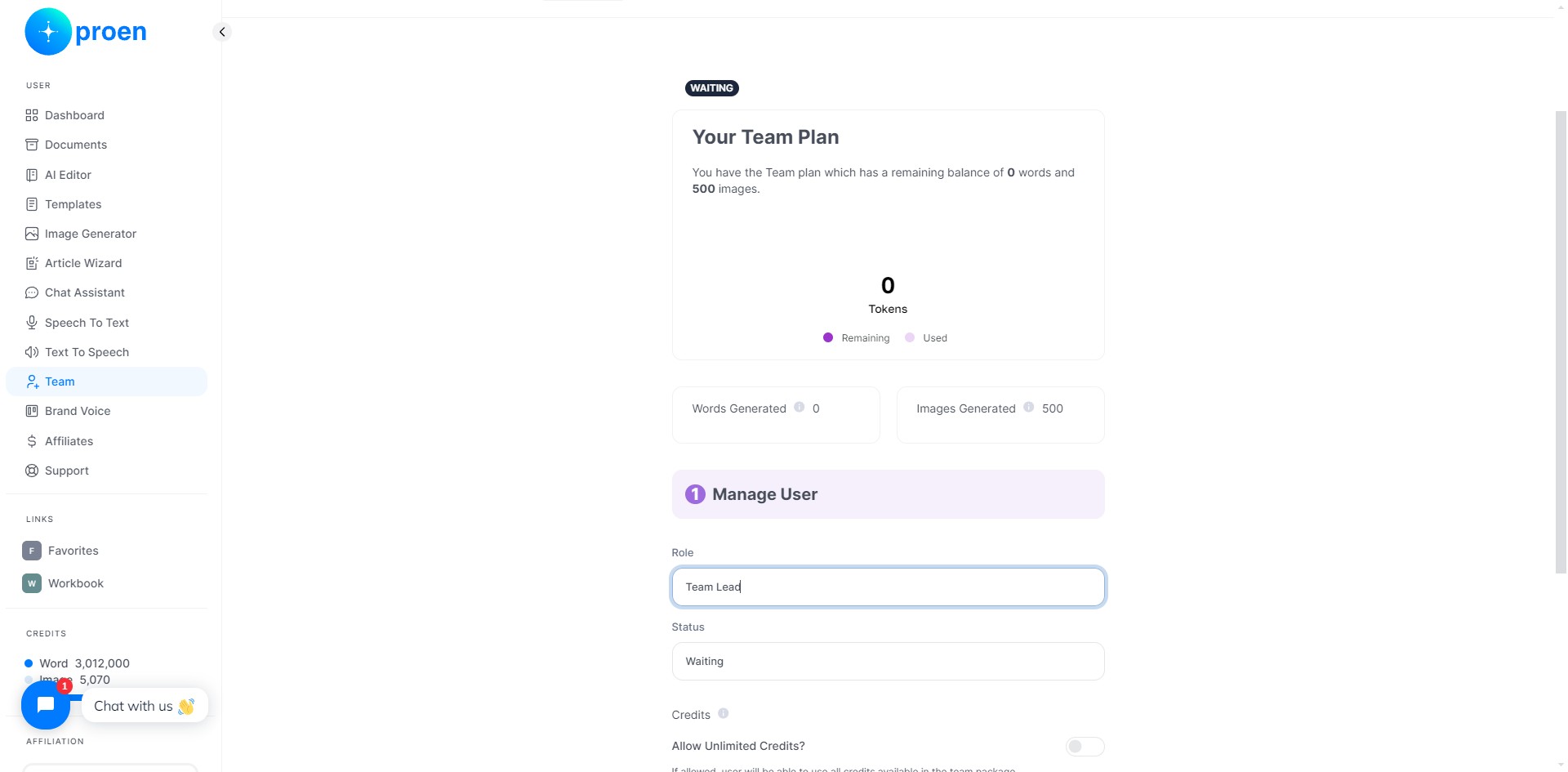
Here, you can set the image credit limit for a member
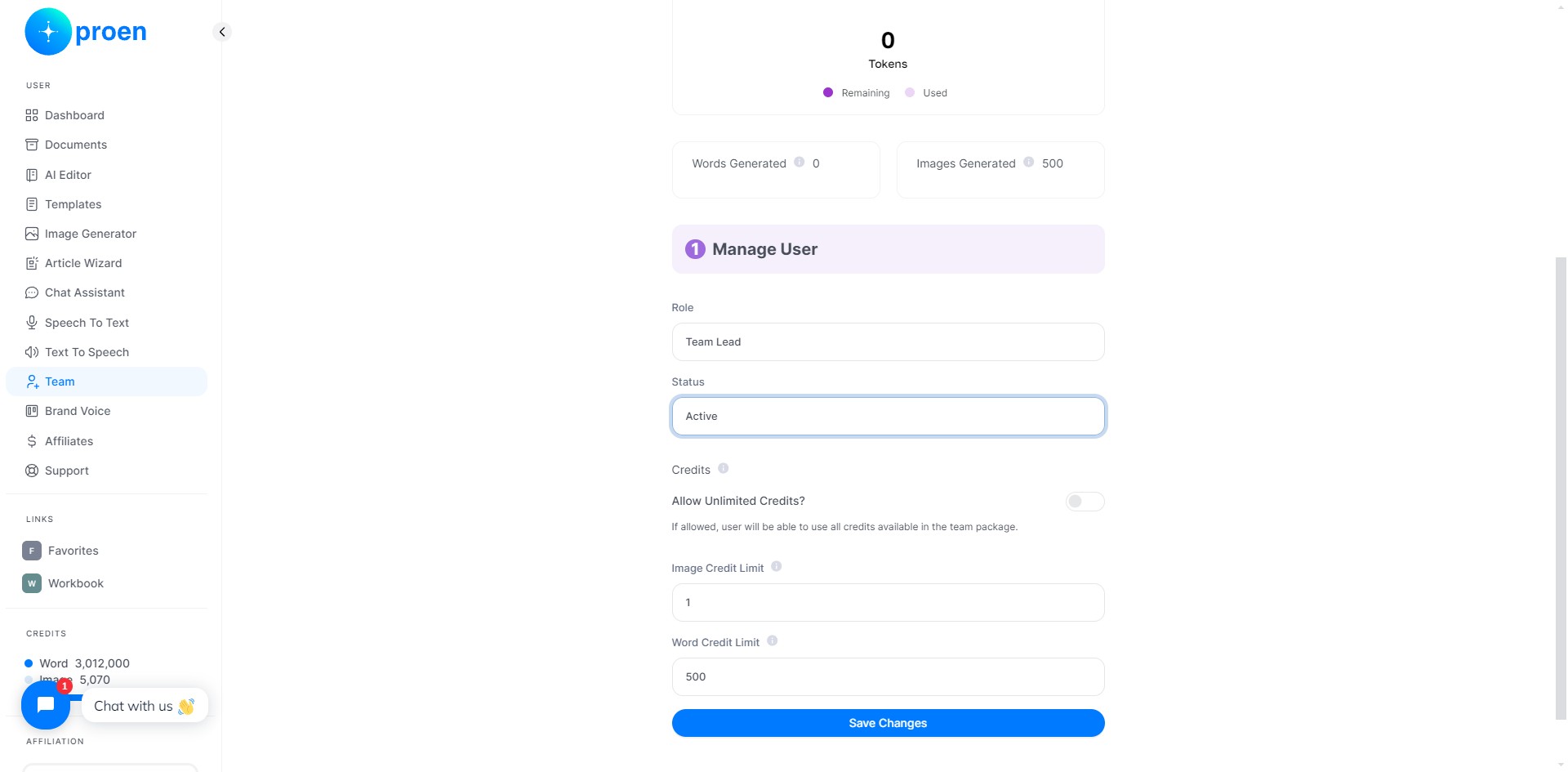
Here, you can set the word credit limit of a member
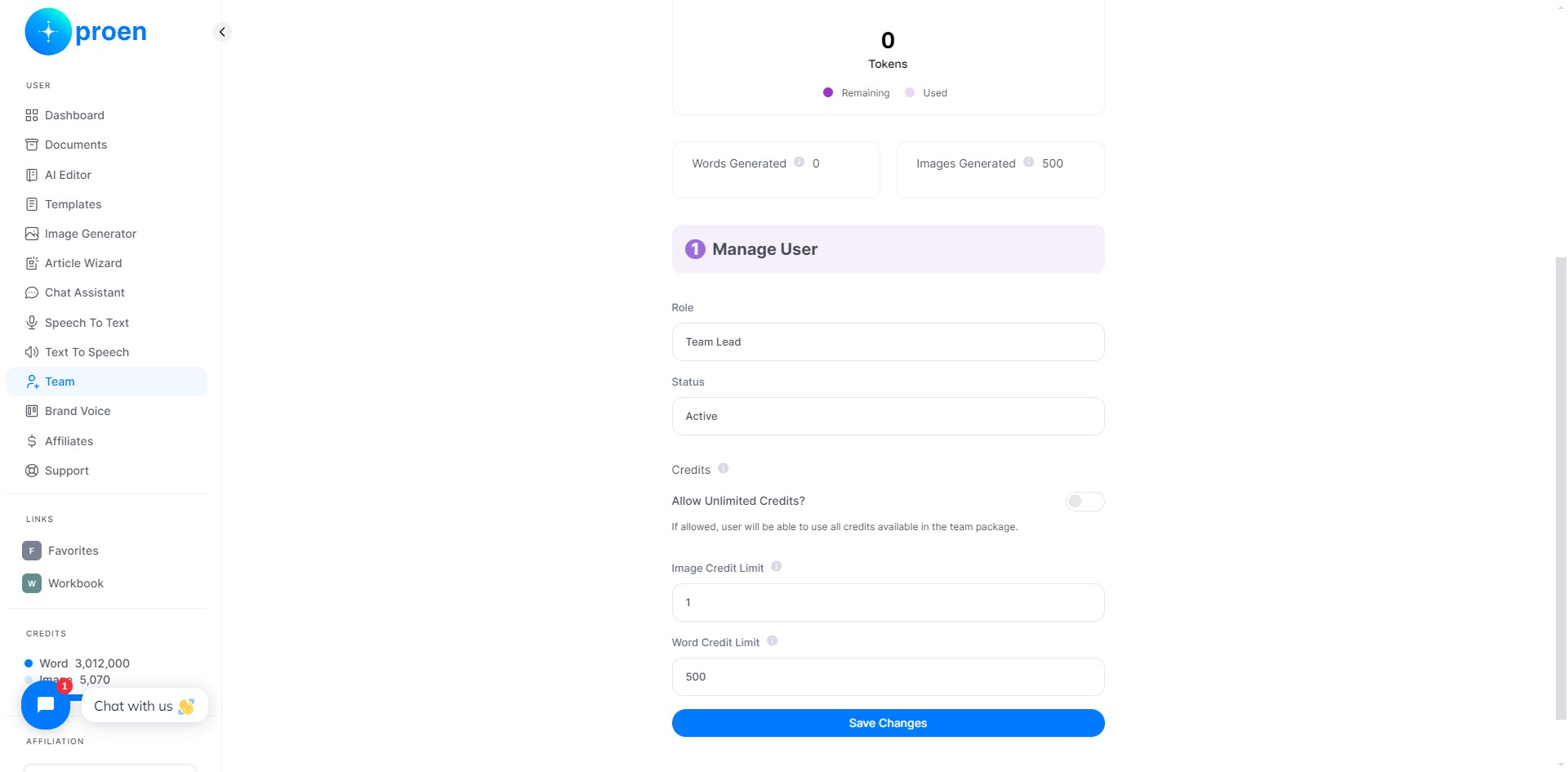
Toggle ON "Allow Unlimited Credits?" to allow a member unlimited access to the team's image/word credit
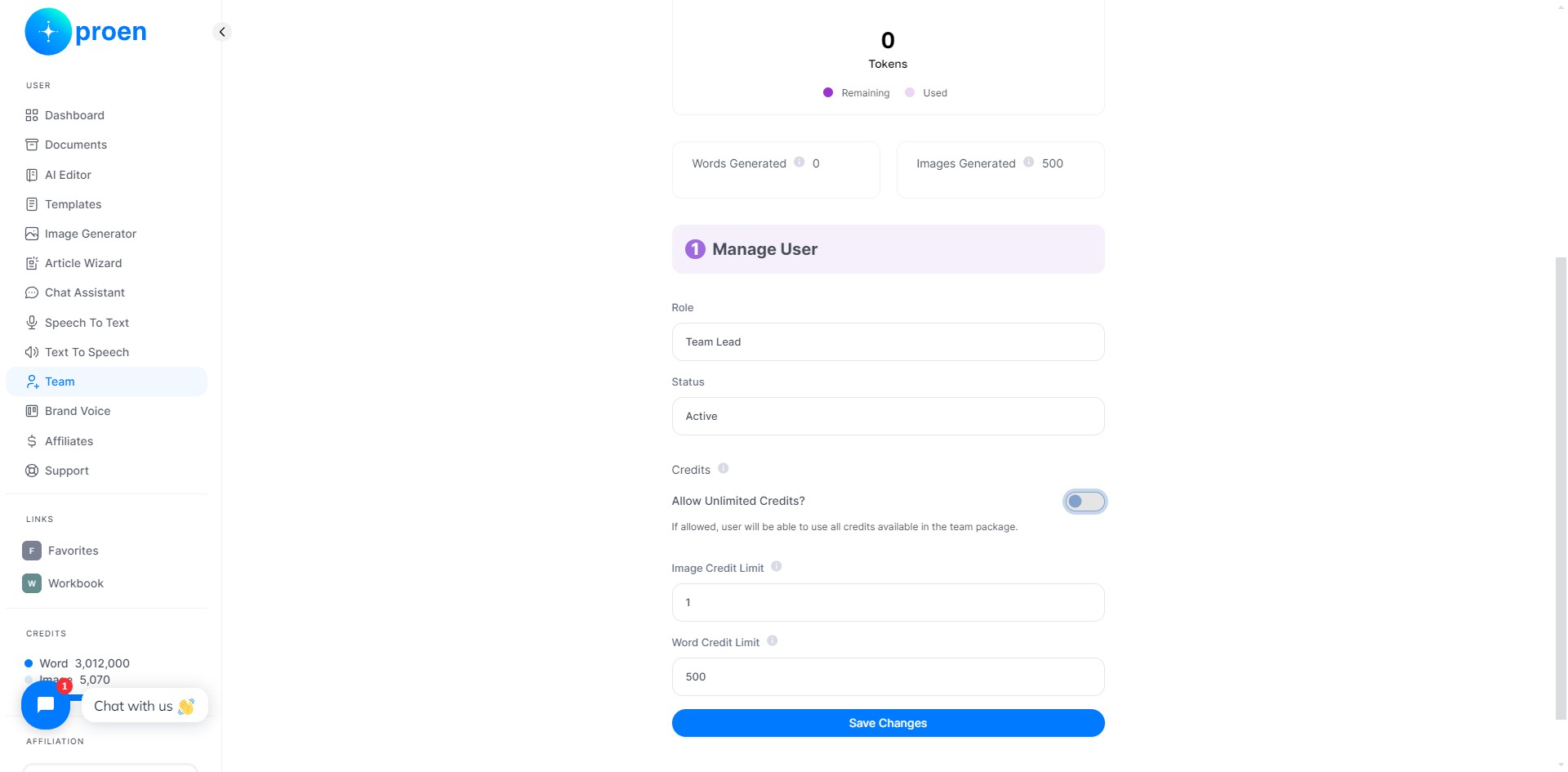
Click on "Save Changes"
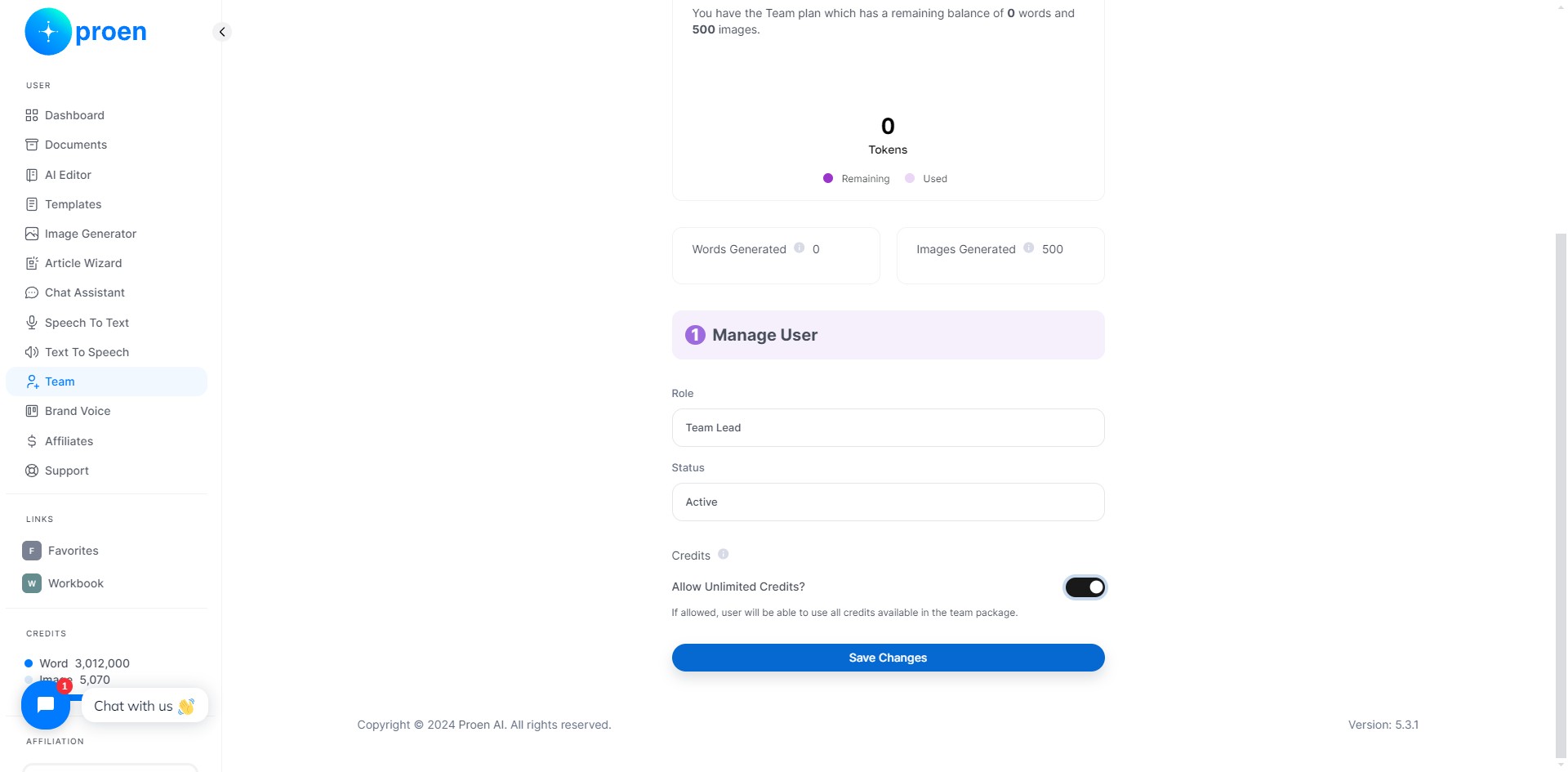
Done 🚀